
Zentrix Check
The gate vouches for what comes in and goes out.
The guard checks every truck against what Odoo® says, takes the photos and signs with a PIN. The result is a record nobody can change, even when the gate has no signal.

How a truck leaves with Zentrix Check.
The app doesn’t ask what the truck carries: it brings that from the company’s system and asks the guard to confirm it with their own eyes. Security vouches; it doesn’t move inventory or touch the books.
Every step is stored with its time, its photo and the name of the person who did it.
- You go on duty at the gate You sign in with your name and your PIN. The “Today” screen shows what is leaving, what is arriving and what is still inside.
- You confirm the truck and the driver You photograph the plate and compare the driver’s ID with what Odoo says. If they don’t match, it is noted.
- Delivery note and invoices You scan the delivery note and each invoice. If the load carries liquor, its transport permit too.
- You count the load Scan product by product, or fill it in from Odoo, which doesn’t count as checked. Every difference gets a severity, and if it is critical the app asks you to call the supervisor.
- Photo of the load and padlock A photo with the doors open and, before closing, the padlock. At some sites, the cab too.
- You sign and tap “Left” With your PIN. The record is closed, with the fingerprint of every photo.
Everything that goes through the gate, on record.
Built for the pace of a gate: trucks waiting, paperwork in hand and, often, no signal.
Outbound trucks
Plate and driver, delivery note and invoices, the load against Odoo, the photo of the load, the padlock and the signature. Whatever doesn’t match is written down, with its severity.
Receipts and returns
Incoming goods, against what was expected and the supplier’s invoice; containers, with a check of their seal. Trucks coming back from their route are reconciled automatically.
Movements without paperwork
If something comes in or goes out with no document in the system, it is recorded anyway: what, when and which guard logged it.
Keys and assets
The QR key ring shows who took each key and when it came back. Company equipment leaves and returns with a pass the manager approves.
Incidents and decisions
An incident in a few words, with a photo if needed. And when a decision has to be made on site, “Who authorized it?” notes who was called and when.
Works without a signal
What the guard does is stored encrypted on the phone and sent automatically when the connection returns, in order and without duplicates.
One gate, three moments of the day.
This is how each one looks from the guard’s phone.
A loaded truck leaving
The load is already in the system. The guard confirms it, counts, photographs, checks the padlock and signs. If something is missing, the app says how much and of what, and if it is serious it asks to call the supervisor before letting the truck go.
A supplier delivering
The guard opens the arrival, checks the seal if it is a container, compares what arrives with what was expected and photographs the supplier’s invoice. The difference is written down before the goods come in.
Something leaving without paperwork
A tool, a box, some material. There is no document, but there is a record: what left, when and which guard logged it.
This is the gate on the phone.
Big buttons, pictures and short sentences, to work standing up and in a hurry.
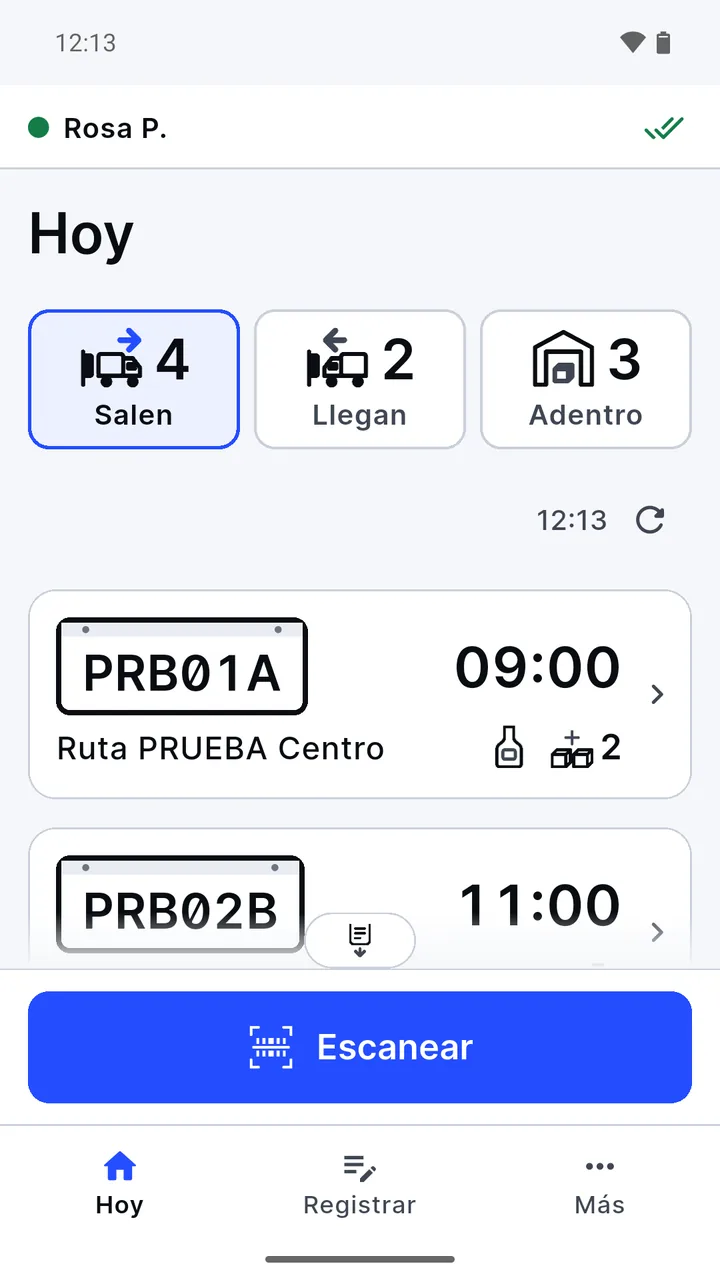
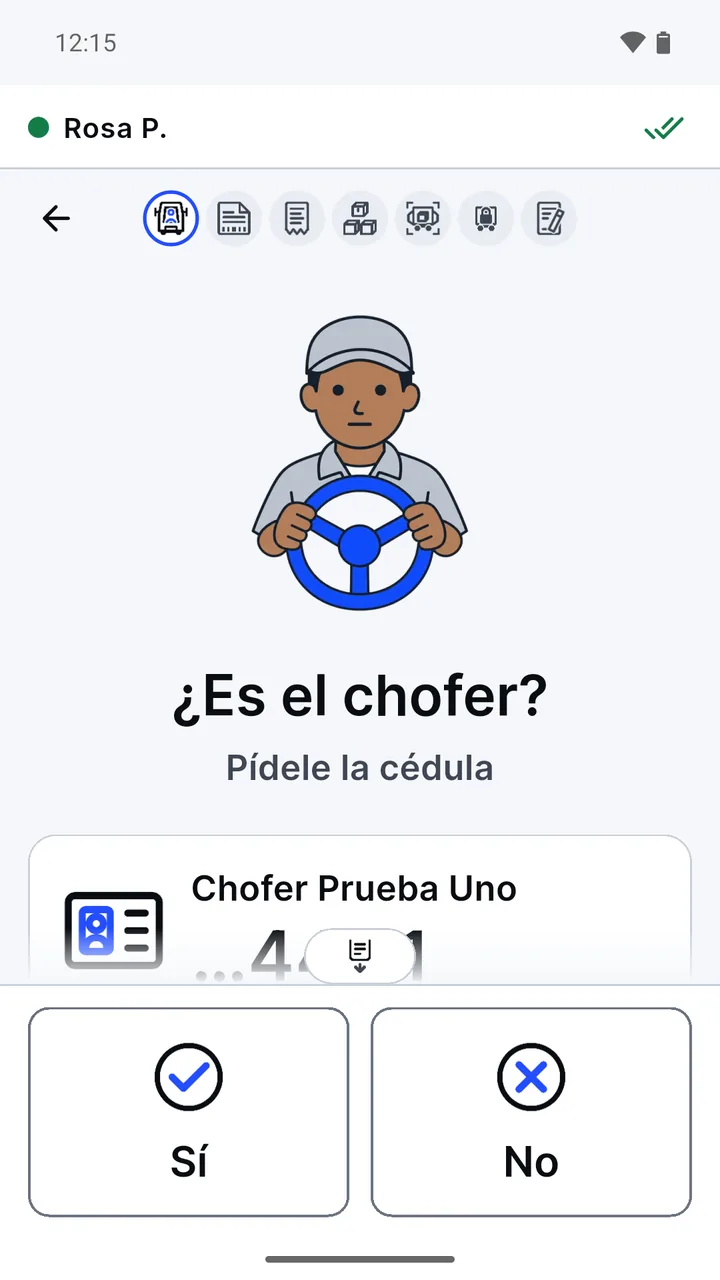
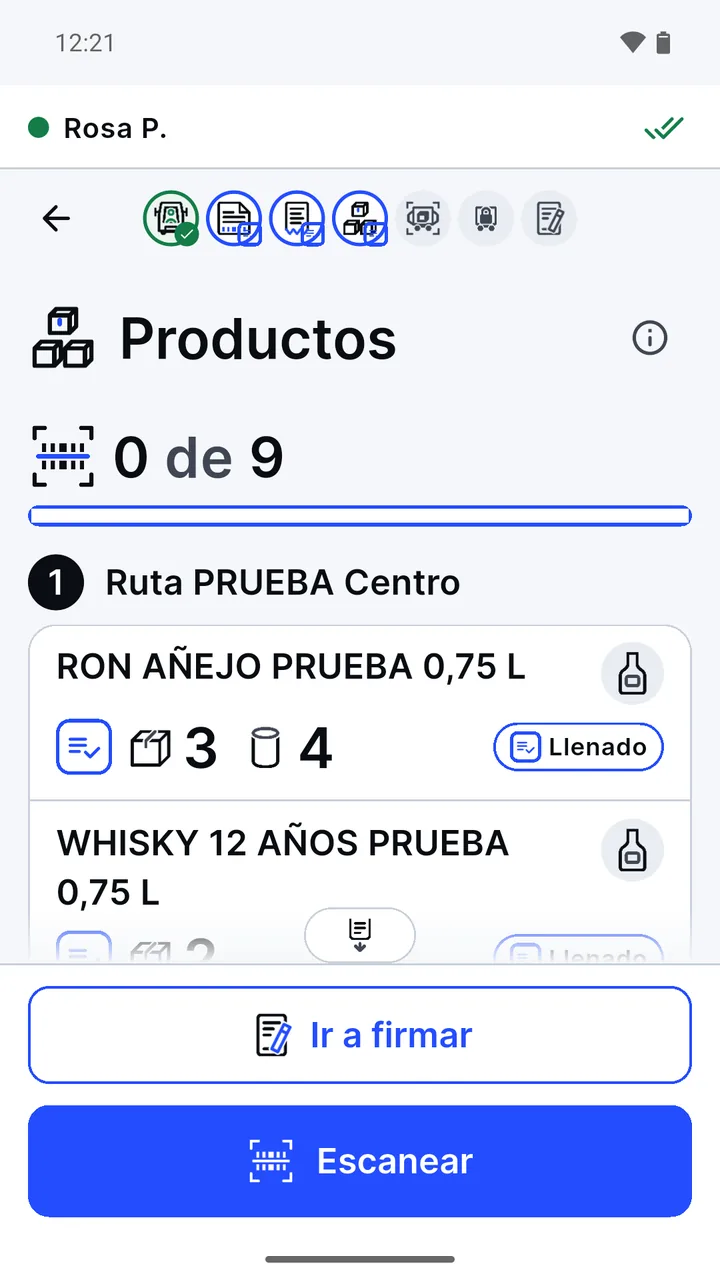
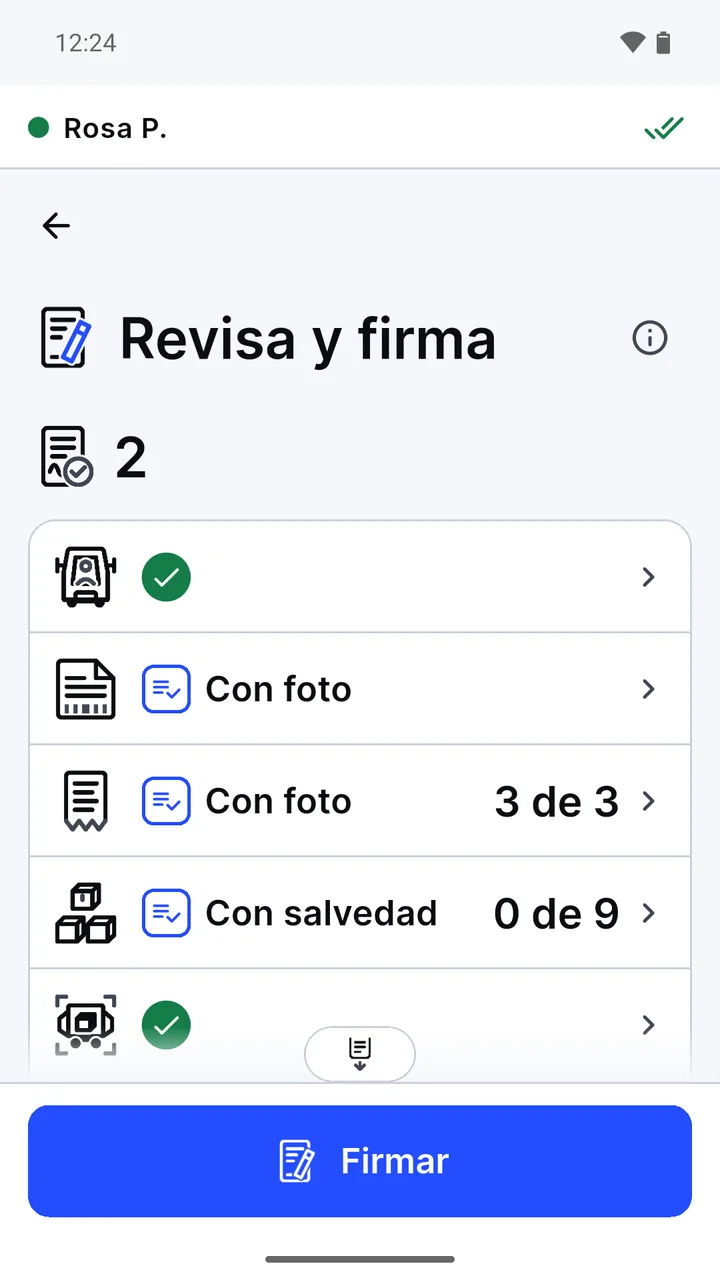
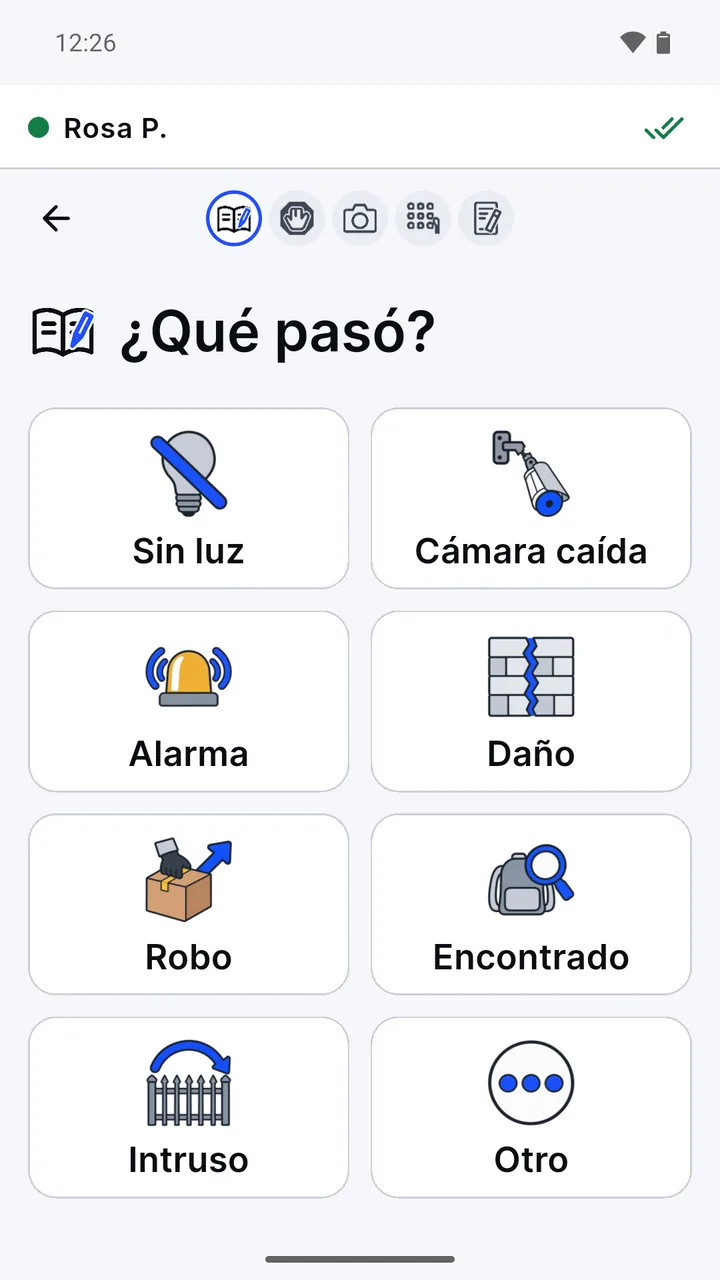
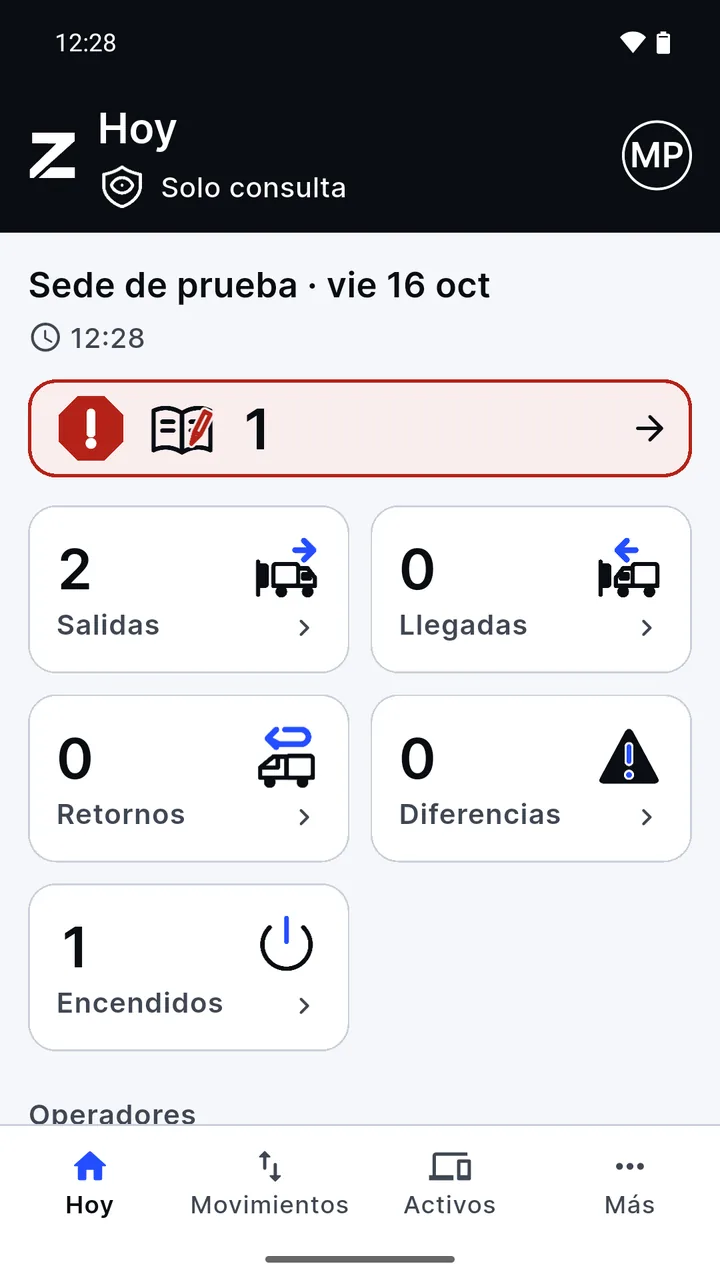
Real screenshots of the app, with a test site and test data. The app is in Spanish.
A record that cannot be changed.
What the guard signs is the version that counts. That is why the app is built so nobody can rewrite it later, not even from the office.
- A fingerprint on every photo and every step. Each event carries the fingerprint of the previous one: if someone changes one, it shows. A correction is added as a note; the original stays.
- The phone is a key. It is set up with a QR code and sealed to one site. If it is lost, it is revoked and wipes what it stored.
- Camera only. No location, no gallery and no contacts. Screenshots are blocked on the PIN, password and photo viewer screens.
- Encrypted on the phone. Whatever is waiting to be sent is encrypted, and the PIN never leaves the phone.
- The administrator only looks. They see the day, the records, the differences and the photos of their site, but cannot change what the guard signed.
- No advertising and no advertising ID.
Who it is for
For the security staff of companies that use Zentrix Check, on the gate’s Android phone. There is no sign-up: the security administrator creates each guard’s account and sets up each phone. Anyone can install the app, but without that setup it does nothing.
Getting started
- The security administrator generates the QR code for the gate phone.
- Install Zentrix Check on that phone and scan the code.
- Sign in with your username and password. Only the first time.
- Create your PIN; from then on you sign in with your name and your PIN.
Zentrix Check, for Android
It is installed from Google Play on the gate phone. Questions? Write to soporte@zentrix.company.